Installing Software with apt
Installing Software with apt
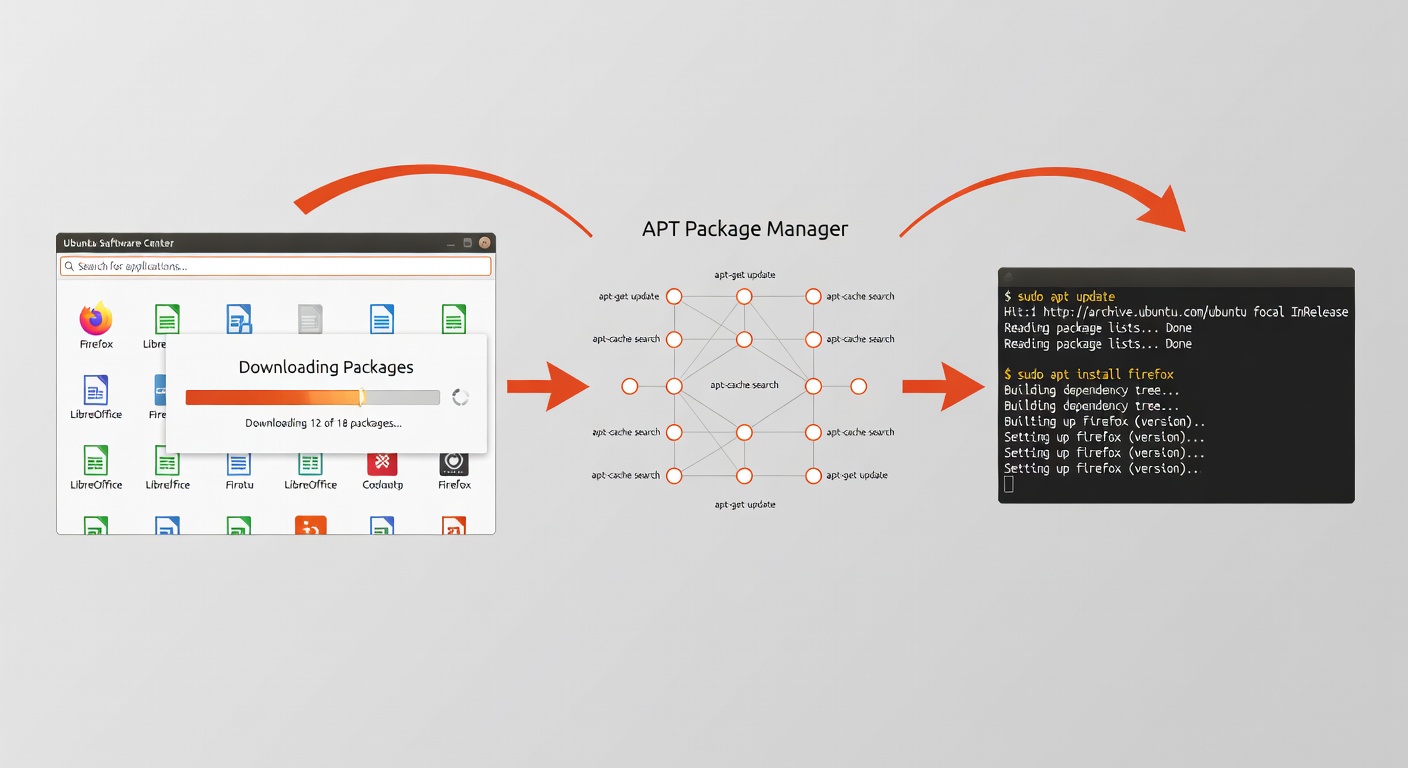
Understanding apt
apt (Advanced Package Tool) is Ubuntu's package manager. It handles installing, updating, and removing software.
Why apt?
- Automatic dependency resolution - Installs required libraries
- Centralized repository - Thousands of packages available
- Easy updates - Update all software with one command
- Security - Packages are verified
Essential apt Commands
1. Update Package List
Always update before installing:
sudo apt update
This refreshes the list of available packages from Ubuntu's servers.
2. Upgrade Installed Packages
Install updates for all packages:
sudo apt upgrade
3. Install a Package
sudo apt install package-name
4. Remove a Package
sudo apt remove package-name
5. Search for Packages
apt search package-name
Installing Essential Tools
Python
Ubuntu usually comes with Python pre-installed. To ensure you have it:
python3 --version
sudo apt install python3-pip
wget - Download Files
sudo apt install wget
Usage:
wget https://example.com/file.zip
curl - HTTP Requests
sudo apt install curl
Usage:
curl https://api.example.com/data
git - Version Control
sudo apt install git
Configuration:
git config --global user.name "Your Name"
git config --global user.email "your@email.com"
mc - Midnight Commander
A powerful file manager with text interface:
sudo apt install mc
To run:
mc
htop - Process Monitor
sudo apt install htop
To run:
htop
tree - Directory Visualization
sudo apt install tree
Usage:
tree
tree -L 2  # Limit to 2 levels
Installing Multiple Packages
Install several packages at once:
sudo apt install python3 git curl wget mc htop tree
Full Upgrade
Perform a complete system upgrade:
sudo apt update && sudo apt upgrade && sudo apt autoremove
autoremove- Removes unnecessary packages
Package Management Tips
Clean Up:
sudo apt clean      # Remove downloaded .deb files
sudo apt autoclean  # Remove obsolete download files
List Installed Packages:
dpkg -l | less
Check Package Info:
apt show package-name
Summary
The apt package manager makes Linux software management easy:
| Command | Purpose |
|---|---|
apt update | Refresh package list |
apt install pkg | Install package |
apt remove pkg | Remove package |
apt upgrade | Update all packages |
apt search pkg | Find packages |
Next Lesson
In the next lesson, you'll learn about essential Linux tools and commands for daily use.
Quiz - Quiz - Installing Software with apt
1. What does 'apt' stand for?
2. Which command installs Python in Ubuntu?
3. What should you do before installing new packages?
4. Which command removes a package?