Basic Commands - add, commit, status
Basic Commands - add, commit, status
Introduction
These are the fundamental commands you will use every day in GIT. Mastering them is essential for effective version control.
The Workflow
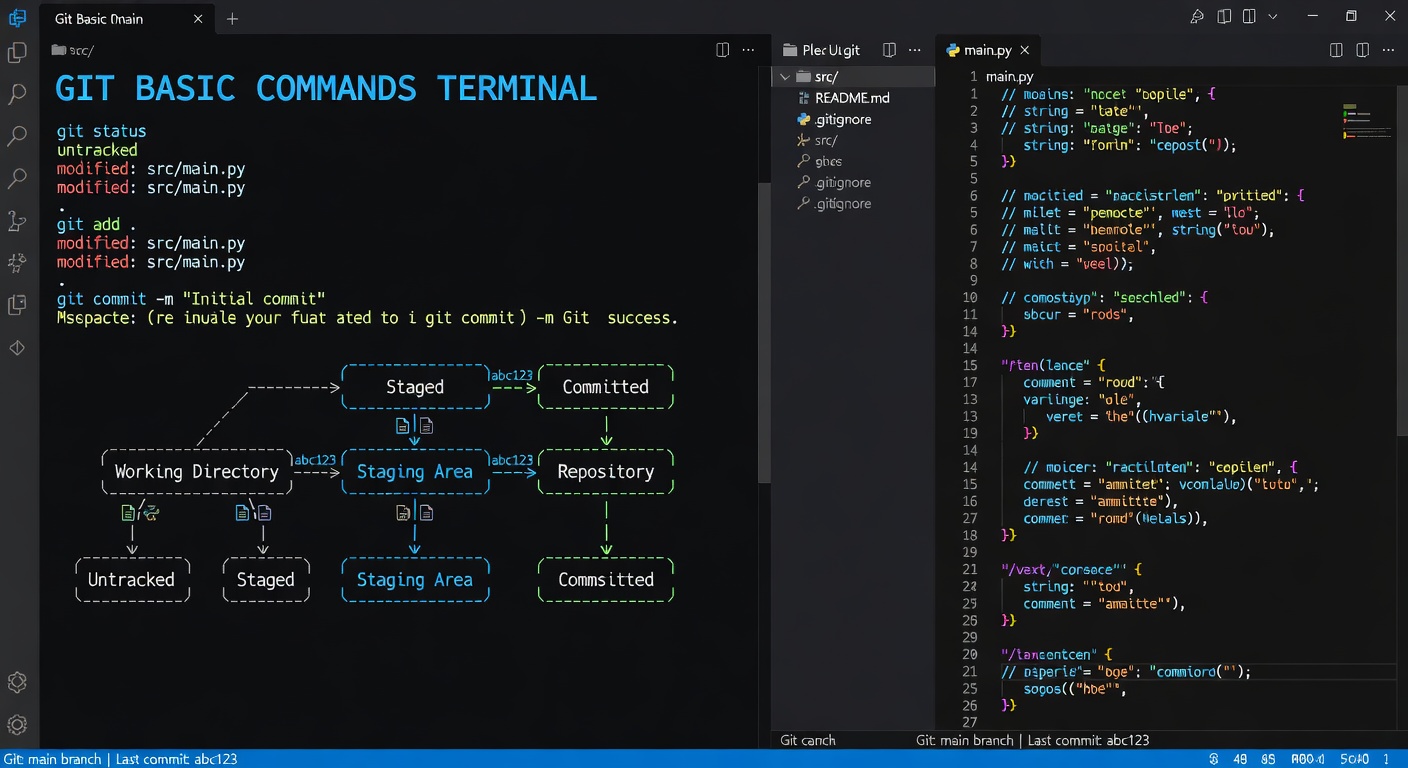
Basic GIT workflow:
Working Directory → Staging Area → Repository
     (edit)      →   (git add)   → (git commit)
git status
Shows the current state of your repository:
git status
Output examples:
On branch main
Changes not staged for commit:
  (modified:   file.txt)Untracked files:
  (new-file.js)
Short Status
For a more compact view:
git status -s
Or:
git status --short
Output:
M  file.txt
?? new-file.js
Status codes:
M- ModifiedA- AddedD- DeletedR- Renamed??- Untracked
git add
Adds changes to the staging area.
Add Specific File
git add filename.txt
Add Multiple Files
git add file1.txt file2.txt
Add All Changes
git add .
This adds:
- All new files
- All modified files
- All deleted files
Add by Pattern
# Add all JavaScript files
git add *.jsAdd all files in src directory
git add src/Add all modified files only
git add -u
Interactive Add
git add -i
This opens an interactive menu to select files.
Add Parts of a File
For files with multiple changes:
git add -p filename.txt
This lets you stage changes piece by piece.
git commit
Saves staged changes to the repository.
Basic Commit
git commit -m "Your message here"
Add and Commit in One Command
git commit -am "Message"
⚠️ This only works for modified files, NOT new untracked files.
Amend Last Commit
To modify the last commit:
git commit --amend -m "New message"
To add forgotten files:
git add forgotten-file.txt
git commit --amend --no-edit
Empty Commit
Create a commit with no changes (useful for triggering CI/CD):
git commit --allow-empty -m "Trigger build"
Examples
Example 1: Making Your First Changes
# Check current status
git statusCreate a new file
echo "Hello World" > hello.txtCheck status again
git statusStage the file
git add hello.txtCheck staged status
git statusCommit
git commit -m "Add hello.txt with greeting"
Example 2: Editing an Existing File
# Edit file in your editor
Then stage and commit
git add updated-file.txt
git commit -m "Update file with new features"
Example 3: Multiple Files
# Stage multiple files
git add file1.txt file2.txt folder/Commit all at once
git commit -m "Add multiple files and folder"
Viewing Commit History
# Show recent commits
git logShow last 5 commits
git log -5Compact view
git log --onelineWith graph
git log --graph --oneline --all
Summary
Master these commands:
git status- See what changedgit add- Stage changes for commitgit commit- Save staged changesgit log- View commit history
Next Lesson
Learn how to view history and differences between commits.
Quiz - Quiz - Basic Commands
1. What does 'git add' do?
2. What does 'git commit' do?
3. Which command shows current repository status?
4. What does 'git commit -am' do?
5. What does '--amend' do in git commit?