Initial Configuration
Initial Configuration
Introduction
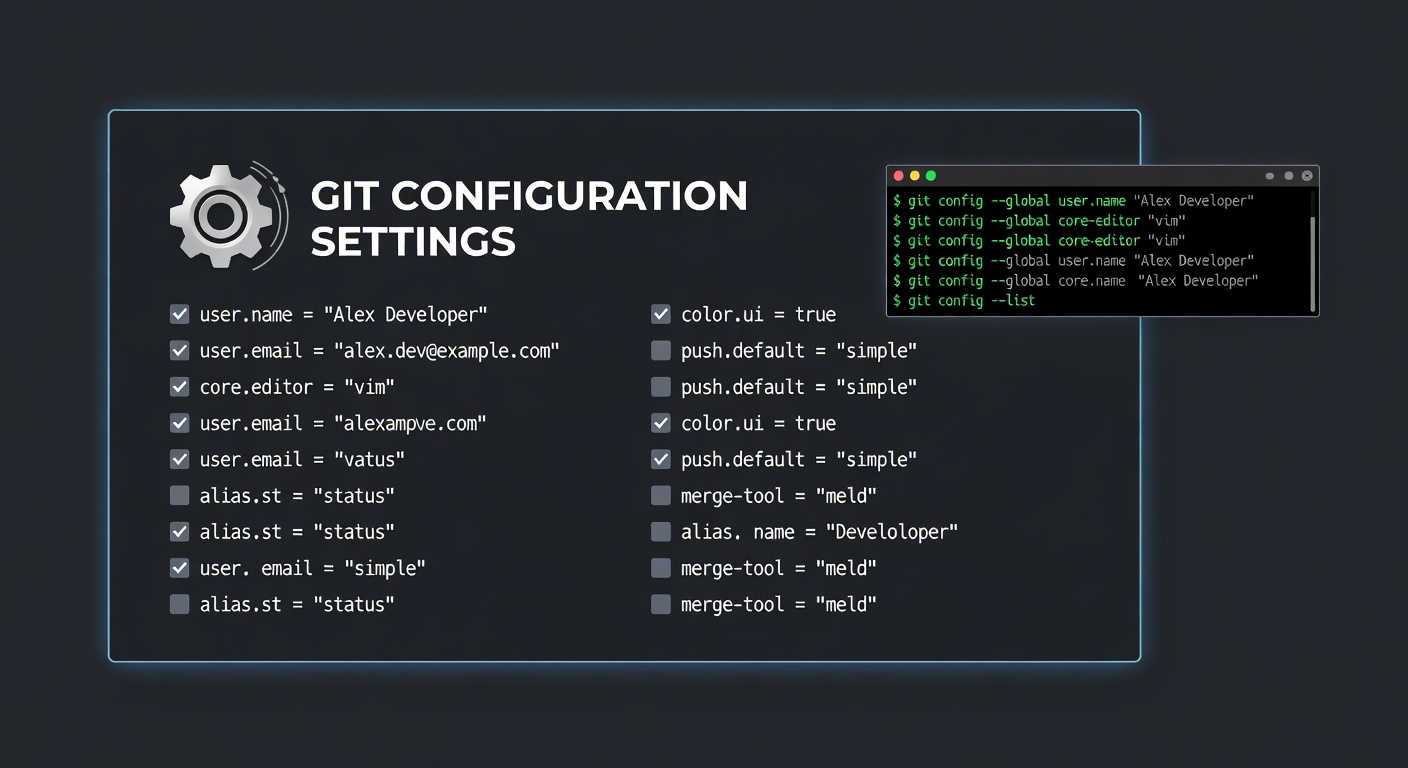
After installing GIT, proper configuration is essential. This lesson covers all the important configuration options.
Setting Up Your Identity
The first thing you should configure is your name and email. This information appears in every commit:
git config --global user.name "Your Name"
git config --global user.email "your.email@example.com"
The --global flag sets these values for all repositories on your system.
Configuring Your Editor
Set your preferred text editor for commit messages:
# VS Code
git config --global core.editor "code --wait"Vim
git config --global core.editor "vim"Nano
git config --global core.editor "nano"Notepad++ (Windows)
git config --global core.editor "'C:/Program Files/Notepad++/notepad++.exe' -multiInst -notabbar -nosession -noPlugin"
Line Ending Configuration
Windows
git config --global core.autocrlf true
macOS / Linux
git config --global core.autocrlf input
Or to disable entirely:
git config --global core.autocrlf false
Useful Configurations
Set Default Branch Name
git config --global init.defaultBranch main
Enable Color Output
git config --global color.ui auto
Set Default Push Behavior
git config --global push.default current
Configure Merge Tool
For resolving merge conflicts:
git config --global merge.tool vimdiff
Or use other tools:
git config --global merge.tool kdiff3
git config --global merge.tool tortoisemerge
Viewing Your Configuration
View All Settings
git config --list
View Specific Setting
git config user.name
git config user.email
View Global Settings
git config --global --list
View Local Settings (Repository-specific)
git config --local --list
Configuration Levels
GIT has three configuration levels:
| Level | Flag | File Location |
|---|---|---|
| Local | --local | .git/config |
| Global | --global | ~/.gitconfig |
| System | --system | /etc/gitconfig |
Creating a GIT Alias
Create shortcuts for common commands:
git config --global alias.st status
git config --global alias.co checkout
git config --global alias.br branch
git config --global alias.ci commit
git config --global alias.unstage 'reset HEAD --'
git config --global alias.last 'log -1 HEAD'
git config --global alias.visual 'log --graph --oneline --all'
Now you can use git st instead of git status.
Setting Up GPG Signing
For signed commits, first generate or import your GPG key:
git config --global commit.gpgsign true
git config --global gpg.program gpg
Or on macOS
git config --global gpg.program /usr/local/MacGPG2/bin/gpg2
Configuration Example
A comprehensive .gitconfig file:
[user]
name = Your Name
email = your.email@example.com[core]
editor = code --wait
autocrlf = input
[init]
defaultBranch = main
[alias]
st = status
co = checkout
br = branch
ci = commit
unstage = reset HEAD --
last = log -1 HEAD
[color]
ui = auto
Summary
Proper GIT configuration makes your workflow smoother:
- Always set your name and email first
- Choose a comfortable editor
- Configure line endings for your OS
- Create aliases for frequently used commands
- Use
--globalfor settings that apply to all repositories
Next Lesson
Now let's learn how to create a new repository and start tracking your project.
Quiz - Quiz - Initial Configuration
1. What flag sets GIT configuration for all repositories on your system?
2. How do you set your default GIT editor to VS Code?
3. What does 'core.autocrlf' setting do?
4. Which configuration level has the highest priority?
5. What command creates an alias 'st' for 'status'?