Cameras: Perspective vs Orthographic
Cameras: Perspective vs Orthographic
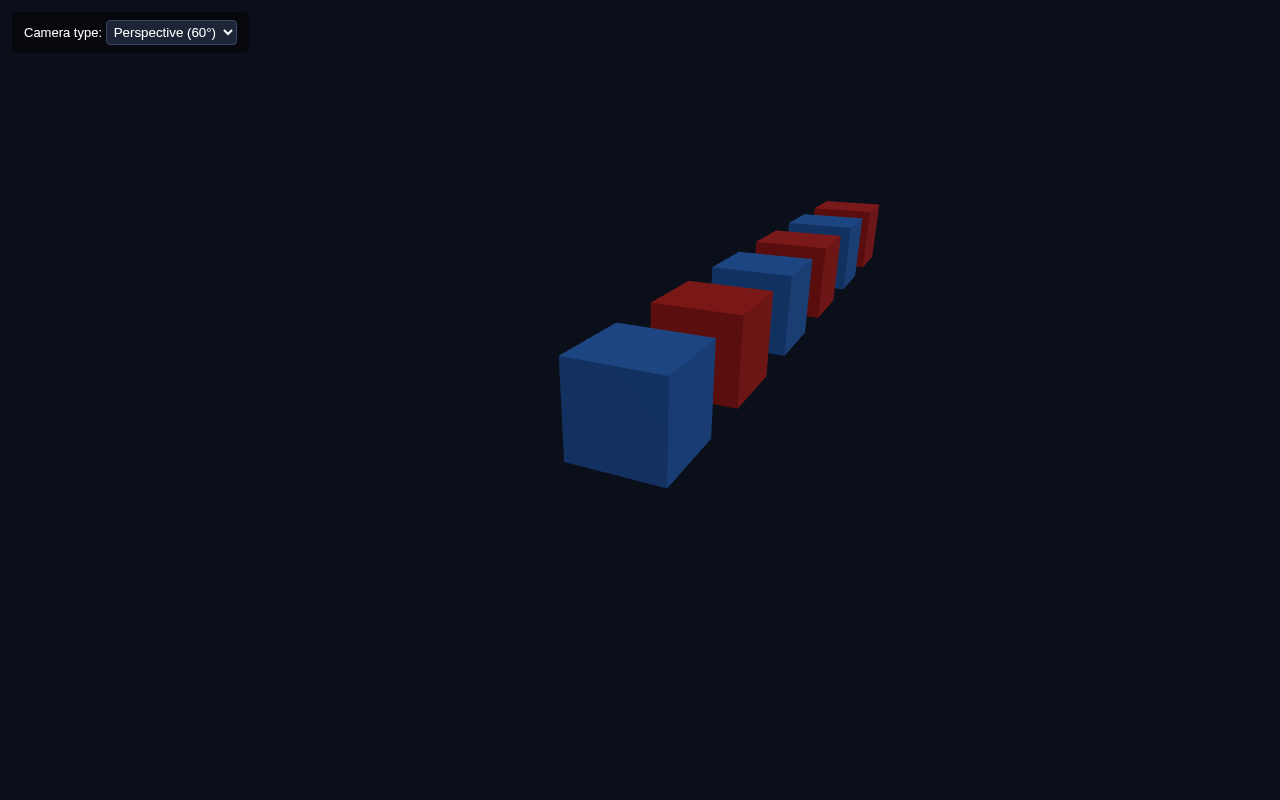
The camera is how your user sees your 3D world, and the type of camera dramatically changes what the render looks like. This lesson compares the two built-in cameras: PerspectiveCamera (realistic, objects shrink with distance) and OrthographicCamera (flat, parallel, no depth shrinking — like an engineering drawing).
Two Cameras in One Example
This example has both cameras and a small dropdown to switch between them live. We also place a row of identical boxes receding into the distance, which makes the difference obvious.
<!DOCTYPE html>
<html lang="en">
<head>
<meta charset="UTF-8">
<meta name="viewport" content="width=device-width, initial-scale=1.0">
<title>Three.js – Perspective vs Orthographic</title>
<style>body{margin:0;overflow:hidden;background:#0b0f1a}
#ui{position:absolute;top:12px;left:12px;color:#fff;font:13px sans-serif;z-index:10;background:rgba(0,0,0,.45);padding:8px 12px;border-radius:6px}
select{background:#1c2436;color:#fff;border:1px solid #3a4763;border-radius:4px;padding:3px}</style>
</head>
<body>
<div id="ui">
Camera type:
<select id="camType">
<option value="perspective">Perspective (60°)</option>
<option value="ortho">Orthographic</option>
</select>
</div>
<script type="importmap">
{ "imports": {
"three": "https://unpkg.com/three@0.160.0/build/three.module.js",
"three/addons/": "https://unpkg.com/three@0.160.0/examples/jsm/"
} }
</script>
<script type="module">
import * as THREE from 'three'; const scene = new THREE.Scene();
scene.background = new THREE.Color(0x0b0f1a);
const perspective = new THREE.PerspectiveCamera(60, innerWidth / innerHeight, 0.1, 1000);
const ortho = new THREE.OrthographicCamera(-3, 3, 3, -3, 0.1, 1000);
let camera = perspective;
camera.position.set(2, 2, 4);
camera.lookAt(0, 0, 0);
const renderer = new THREE.WebGLRenderer({ antialias: true });
renderer.setSize(innerWidth, innerHeight);
document.body.appendChild(renderer.domElement);
scene.add(new THREE.AmbientLight(0x404040));
const dir = new THREE.DirectionalLight(0xffffff, 1);
dir.position.set(3, 4, 2);
scene.add(dir);
for (let i = 0; i < 6; i++) {
const geo = new THREE.BoxGeometry(0.8, 0.8, 0.8);
const mat = new THREE.MeshStandardMaterial({ color: i % 2 ? 0xe02424 : 0x2f80ed });
const box = new THREE.Mesh(geo, mat);
box.position.z = -i * 1.4;
scene.add(box);
}
const camType = document.getElementById('camType');
camType.addEventListener('change', () => {
camera = camType.value === 'perspective' ? perspective : ortho;
camera.position.set(2, 2, 4);
camera.lookAt(0, 0, 0);
});
function animate() {
requestAnimationFrame(animate);
renderer.render(scene, camera);
}
animate();
</script>
</body>
</html>
How the Two Cameras Differ
PerspectiveCamera (default, realistic). This is the same camera from lesson 1. Its signature is PerspectiveCamera(fov, aspect, near, far) — field of view, aspect ratio, and near/far clipping planes. It produces a view just like a camera or a human eye: parallel lines converge, and distant boxes appear smaller. That is why our row of boxes shrinks toward the back.
OrthographicCamera (flat, exact). Its signature is OrthographicCamera(left, right, top, bottom, near, far) — the visible box is defined by four boundary values instead of an angle. Objects keep their true size no matter how far away they are, so the row of boxes stays the same height all the way back. This is why blueprints, CAD and strategy games use it — it is dimensionally accurate.
Switching in code. We create let camera, assign it the perspective camera, and swap it when the dropdown changes. renderer.render(scene, camera) just draws with whichever camera is currently assigned — that is the full trick to switching.
Try It Yourself
- Change the perspective
fovfrom60to100— the view gets wider and more "fisheye". - Change the ortho camera bounds from
(-3, 3, 3, -3)to(-1.5, 1.5, 1.5, -1.5)to zoom the ortho view in. - Move the camera's
positioncloser and farther to see how perspective reacts but ortho does not.
Summary
PerspectiveCamera gives realistic, depth-shrinking views for immersive 3D, while OrthographicCamera gives flat, exactly-to-scale views for diagrams and UI. You switch cameras simply by pointing renderer.render at a different camera object.
Next Lesson
Right now the view is fixed. In the next lesson you add OrbitControls so a user can drag to rotate, scroll to zoom, and pan around your scene with the mouse.
Quiz - Quiz - Cameras
1. Which camera makes distant objects appear smaller?
2. OrthographicCamera is best suited for
3. PerspectiveCamera takes a field of view and aspect ratio as parameters. OrthographicCamera instead takes