Shadows for Realistic Depth
Shadows for Realistic Depth
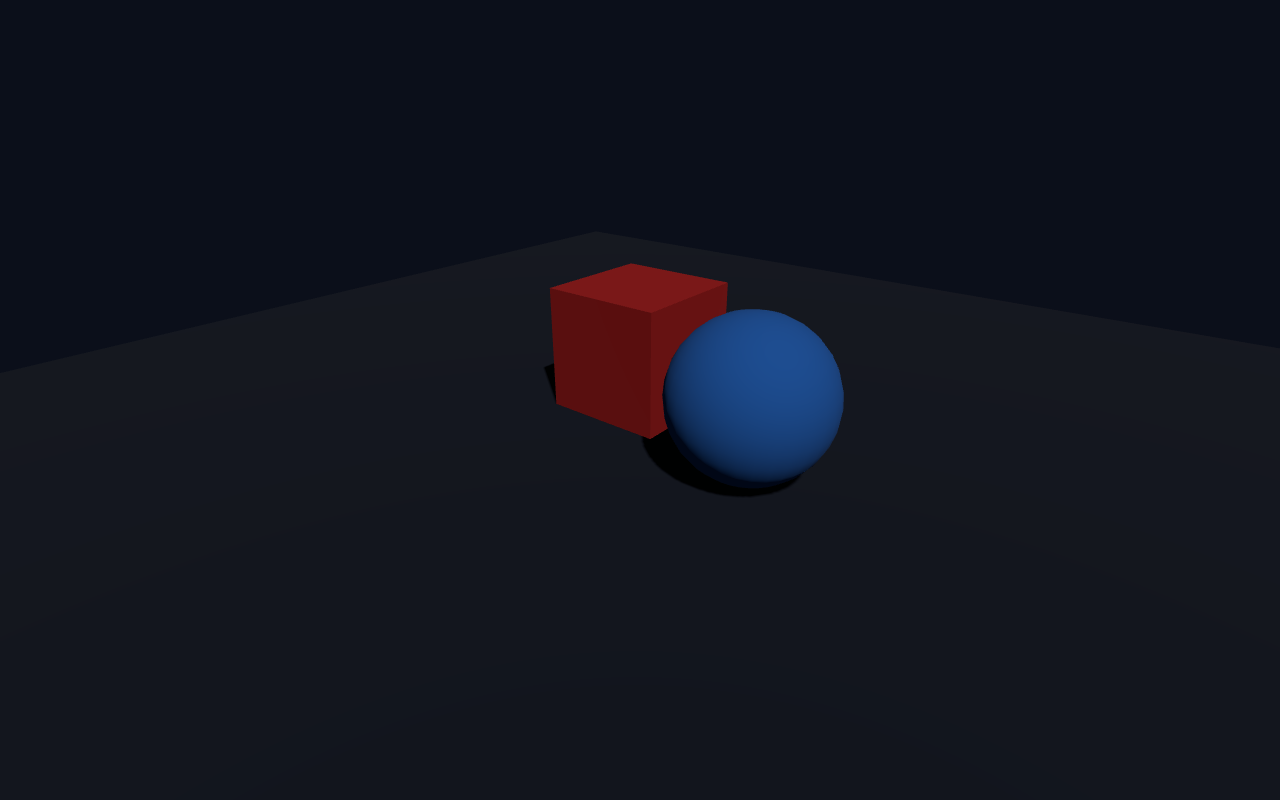
Shadows make a 3D scene read as solid and grounded. They are not on by default — Three.js needs a few explicit steps: turn on the renderer's shadow map, make a light cast shadows, mark objects to cast, and mark surfaces to receive. This lesson sets up a box and a sphere casting shadows on a floor.
The Four Steps to Shadows
1. Enable renderer.shadowMap.enabled = true.
2. Give a light castShadow = true and size its shadow map.
3. On each caster (objects like the box and sphere): castShadow = true.
4. On each receiver (surfaces like the ground): receiveShadow = true.
Full Example
<!DOCTYPE html>
<html lang="en">
<head>
  <meta charset="UTF-8">
  <meta name="viewport" content="width=device-width, initial-scale=1.0">
  <title>Three.js – Shadows</title>
  <style>body{margin:0;overflow:hidden;background:#0b0f1a}</style>
</head>
<body>
  <script type="importmap">
    { "imports": {
        "three": "https://unpkg.com/three@0.160.0/build/three.module.js",
        "three/addons/": "https://unpkg.com/three@0.160.0/examples/jsm/"
    } }
  </script>
  <script type="module">
    import * as THREE from 'three';    const scene = new THREE.Scene();
    scene.background = new THREE.Color(0x0b0f1a);    const camera = new THREE.PerspectiveCamera(60, innerWidth / innerHeight, 0.1, 1000);
    camera.position.set(4, 3, 5);
    camera.lookAt(0, 0, 0);    const renderer = new THREE.WebGLRenderer({ antialias: true });
    renderer.setSize(innerWidth, innerHeight);
    renderer.shadowMap.enabled = true;   // 1) turn shadows ON
    renderer.shadowMap.type = THREE.PCFSoftShadowMap;
    document.body.appendChild(renderer.domElement);    // 2) a light that casts shadows
    const dir = new THREE.DirectionalLight(0xffffff, 1);
    dir.position.set(4, 6, 3);
    dir.castShadow = true;
    dir.shadow.mapSize.set(1024, 1024);
    scene.add(dir);
    scene.add(new THREE.AmbientLight(0x303030));    // 3) objects that cast
    const box = new THREE.Mesh(
      new THREE.BoxGeometry(1.2, 1.2, 1.2),
      new THREE.MeshStandardMaterial({ color: 0xe02424 })
    );
    box.position.set(0, 0.6, 0);
    box.castShadow = true;
    scene.add(box);    const sphere = new THREE.Mesh(
      new THREE.SphereGeometry(0.7, 32, 16),
      new THREE.MeshStandardMaterial({ color: 0x2f80ed })
    );
    sphere.position.set(1.6, 0.7, 0.6);
    sphere.castShadow = true;
    scene.add(sphere);    // 4) a surface that receives
    const ground = new THREE.Mesh(
      new THREE.PlaneGeometry(12, 12),
      new THREE.MeshStandardMaterial({ color: 0x1c2436 })
    );
    ground.rotation.x = -Math.PI / 2;
    ground.position.y = 0;
    ground.receiveShadow = true;
    scene.add(ground);    function animate() {
      requestAnimationFrame(animate);
      renderer.render(scene, camera);
    }
    animate();
  </script>
</body>
</html>
The Key Configuration
Renderer. renderer.shadowMap.enabled = true switches on shadow rendering globally. renderer.shadowMap.type = THREE.PCFSoftShadowMap selects a soft, modern shadow filter (better quality than the default at a minor cost).
The light. A DirectionalLight with castShadow = true becomes the shadow-casting light. dir.shadow.mapSize.set(1024, 1024) is how big the shadow texture is — higher = crisper shadows, more memory. Only light-emitting objects cast, so the light must be flagged.
Casters vs receivers. The distinction is the heart of shadow control:
box.castShadow = trueandsphere.castShadow = truemark them as things that block light and throw shadows.ground.receiveShadow = truemarks the floor as something that shows those shadows on its surface.
MeshStandardMaterial because it responds to the lighting and shadow information.Try It Yourself
- Move the directional light to
(0, 2, 0)directly overhead — the shadows shrink to under the objects. - Increase
dir.shadow.mapSizeto2048for sharper shadows. - Remove
receiveShadowfrom the ground — the shadows disappear even though objects still cast. - Add a third object on the ground without
castShadowto see it casts none.
Summary
Shadows need four explicit steps: enable the renderer's shadow map, flag a light to cast, mark objects to cast, and mark surfaces to receive. Once set up, they add strong depth and grounding to your scenes.
Next Lesson
Shadows help, but real surfaces often have pictures on them. The next lesson covers textures — mapping an image onto a material so a ball can look like a pattern, a photo, or a label.
Quiz - Quiz - Shadows
1. To enable shadows you first need to set
2. Which objects must have castShadow = true?
3. A surface that displays shadows needs