Capstone: An Interactive 3D Diorama
Capstone: An Interactive 3D Diorama
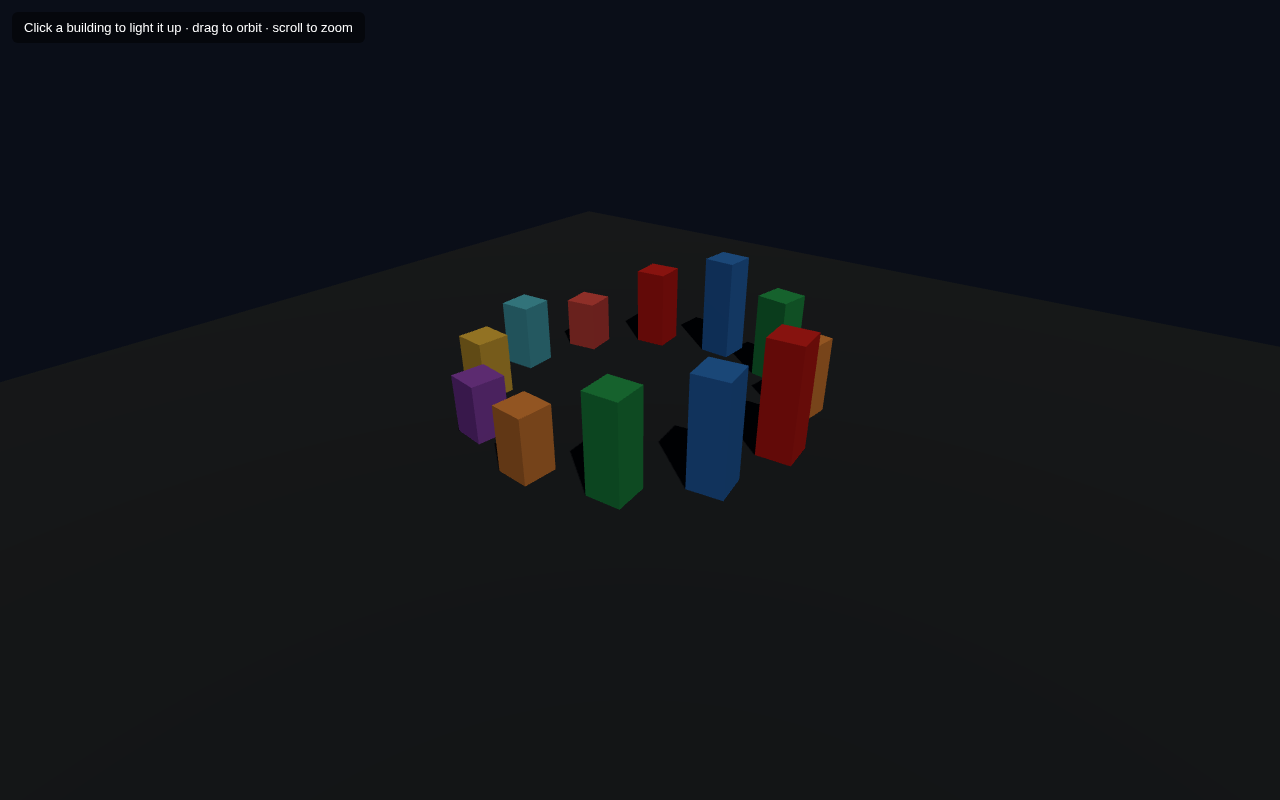
Every technique in this course comes together in the capstone: an interactive 3D diorama. It has a lit, grounded scene you can orbit; a town of colorful buildings with shadows; and click-to-highlight interaction. Think of it as a miniature living world built from everything you have learned.
What the Capstone Combines
- Scene, camera and renderer (lesson 1)
- A mesh from geometry + material (lesson 2)
- Perspective camera + OrbitControls (lessons 3–4)
- Primitive geometries in a loop (lesson 5)
- Materials and lighting (lessons 6–7)
- Transform and Groups (lessons 8–9 via the orbit pattern)
- Raycaster click interaction (lesson 11)
- Shadows (lesson 12)
- Time-based animation (lessons 9–10)
Full Example
<!DOCTYPE html>
<html lang="en">
<head>
  <meta charset="UTF-8">
  <meta name="viewport" content="width=device-width, initial-scale=1.0">
  <title>Three.js – Interactive 3D Diorama (Capstone)</title>
  <style>body{margin:0;overflow:hidden;background:#0a0e18}
    #ui{position:absolute;top:12px;left:12px;color:#fff;font:13px sans-serif;z-index:10;background:rgba(0,0,0,.5);padding:8px 12px;border-radius:6px}</style>
</head>
<body>
  <div id="ui">Click a building to light it up · drag to orbit · scroll to zoom</div>
  <script type="importmap">
    { "imports": {
        "three": "https://unpkg.com/three@0.160.0/build/three.module.js",
        "three/addons/": "https://unpkg.com/three@0.160.0/examples/jsm/"
    } }
  </script>
  <script type="module">
    import * as THREE from 'three';
    import { OrbitControls } from 'three/addons/controls/OrbitControls.js';    const scene = new THREE.Scene();
    scene.background = new THREE.Color(0x0a0e18);    const camera = new THREE.PerspectiveCamera(60, innerWidth / innerHeight, 0.1, 1000);
    camera.position.set(10, 9, 13);    const renderer = new THREE.WebGLRenderer({ antialias: true });
    renderer.setSize(innerWidth, innerHeight);
    renderer.shadowMap.enabled = true;
    document.body.appendChild(renderer.domElement);    const controls = new OrbitControls(camera, renderer.domElement);
    controls.enableDamping = true;    const ambient = new THREE.AmbientLight(0x404060, 0.8);
    scene.add(ambient);
    const sun = new THREE.DirectionalLight(0xfff0cc, 1.2);
    sun.position.set(8, 14, 6);
    sun.castShadow = true;
    scene.add(sun);    const ground = new THREE.Mesh(
      new THREE.PlaneGeometry(30, 30),
      new THREE.MeshStandardMaterial({ color: 0x16202e })
    );
    ground.rotation.x = -Math.PI / 2;
    ground.receiveShadow = true;
    scene.add(ground);    const buildings = [];
    const palette = [0xe02424, 0x2f80ed, 0x27ae60, 0xf2994a, 0x9b51e0, 0xf2c94c, 0x56ccf2, 0xeb5757];
    const positions = [];
    for (let i = 0; i < 12; i++) {
      const angle = (i / 12)  Math.PI  2;
      positions.push([Math.cos(angle)  4.2, Math.sin(angle)  4.2]);
    }
    positions.forEach(([x, z], i) => {
      const h = 1 + Math.random() * 2.2;
      const b = new THREE.Mesh(
        new THREE.BoxGeometry(0.9, h, 0.9),
        new THREE.MeshStandardMaterial({ color: palette[i % palette.length], roughness: 0.5 })
      );
      b.position.set(x, h / 2, z);
      b.castShadow = true;
      b.userData.baseColor = palette[i % palette.length];
      scene.add(b);
      buildings.push(b);
    });    const raycaster = new THREE.Raycaster();
    const mouse = new THREE.Vector2();
    renderer.domElement.addEventListener('click', (e) => {
      mouse.x = (e.clientX / renderer.domElement.clientWidth) * 2 - 1;
      mouse.y = -(e.clientY / renderer.domElement.clientHeight) * 2 + 1;
      raycaster.setFromCamera(mouse, camera);
      const hits = raycaster.intersectObjects(buildings);
      if (hits.length) {
        const m = hits[0].object;
        m.material.color.setHex(m.userData.baseColor === m.material.color.getHex()
          ? 0xffffff : m.userData.baseColor);
      }
    });    const clock = new THREE.Clock();
    function animate() {
      requestAnimationFrame(animate);
      const t = clock.getElapsedTime();
      buildings.forEach((b, i) => {
        b.rotation.y = Math.sin(t  0.2 + i)  0.15;
      });
      controls.update();
      renderer.render(scene, camera);
    }
    animate();
  </script>
</body>
</html>
Piece by Piece
Environment. A dark background, a DirectionalLight sun casting shadows, and an ambient fill. The ground plane receiveShadow = true catches the buildings' shadows. OrbitControls with damping lets you fly around the town.
The town. We compute 12 positions evenly spaced around a circle (cos/sin), then in a forEach build a box for each with a random height and a colour taken in rotation from a palette. Each building is stored in a buildings array (needed for the raycaster) and remembers its original colour in userData.baseColor.
Interaction. A click fires the raycaster through the mouse position. When it hits a building, we toggle between white and the building's own colour — tapping a building "lights it up" and tapping again restores it. userData is a handy place to keep custom data on objects.
Life. In the animation loop each building gently sways with a sin wave offset by its index (Math.sin(t * 0.2 + i)), so the town feels organically alive rather than static. controls.update() keeps the damping smooth.
Try It Yourself
- Add a second ring of buildings further out: duplicate the
positionsloop with a bigger radius. - Tint each building with a different roughness, or give the clicked building a spotlight.
- Add orbiting planets overhead by reusing the scene-graph pattern from lesson 10.
- Slow the sway by changing
t <em> 0.2tot </em> 0.05.
Summary
The capstone fuses everything: an orbitable, lit, shadowed, animated town with click interaction. If you can build and extend this example, you have a solid command of Three.js fundamentals — and the perfect jumping-off point for your own 3D projects.
Next Steps
With the core course complete, here is how to keep going: try THREE.TextureLoader with real photos, add the Lensflare or Environment helpers for studio lighting, load external models with GLTFLoader, or explore THREE.Points for particle systems. Every one builds on the scene/camera/renderer skeleton you now know by heart.
Quiz - Quiz - Capstone Diorama
1. Which interaction technique powers click-to-highlight in the diorama?
2. The buildings are arranged in a circle using
3. Custom data attached to an object can be stored in
4. To load an external 3D model you would use