Position, Rotation and Scale
Position, Rotation and Scale
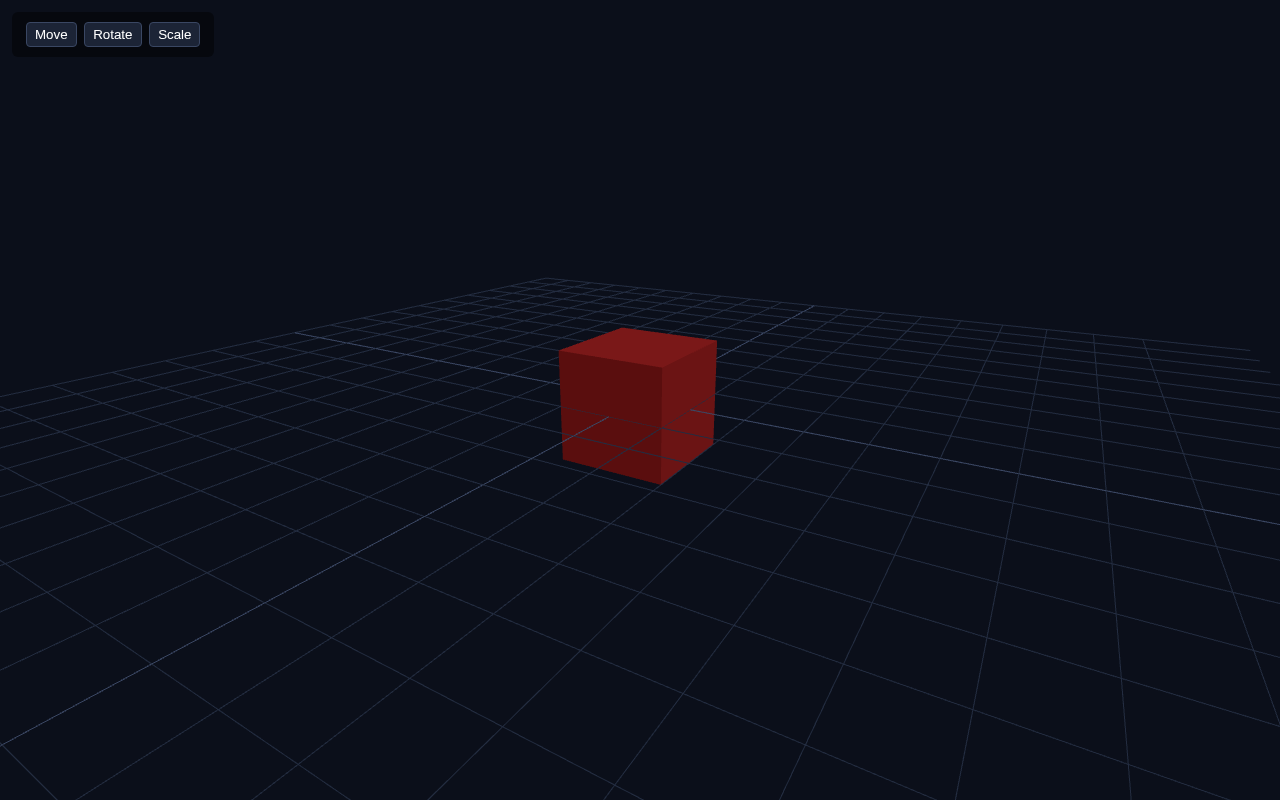
Every object in Three.js has a transform: where it is (position), how it is turned (rotation) and how big it is (scale). These three properties are how you arrange anything in 3D space. In this lesson you build a small interactive demo with buttons that move, rotate and scale a box.
The Three Transforms
Every Object3D (meshes, groups, lights, cameras) has these properties:
- position — a
Vector3withx,y,zcoordinates. - rotation — a
Vector3of Euler angles in radians (x, y, z). - scale — a
Vector3multiplying size on each axis.
position.set(x, y, z), rotation.y = value, or scale.set(sx, sy, sz).Full Example
<!DOCTYPE html>
<html lang="en">
<head>
  <meta charset="UTF-8">
  <meta name="viewport" content="width=device-width, initial-scale=1.0">
  <title>Three.js – Position, Rotation, Scale</title>
  <style>body{margin:0;overflow:hidden;background:#0b0f1a}
    #ui{position:absolute;top:12px;left:12px;color:#fff;font:13px sans-serif;z-index:10;background:rgba(0,0,0,.45);padding:8px 12px;border-radius:6px}
    button{margin:2px;padding:4px 8px;border:1px solid #3a4763;background:#1c2436;color:#fff;border-radius:4px;cursor:pointer}</style>
</head>
<body>
  <div id="ui">
    <button id="move">Move</button>
    <button id="rotate">Rotate</button>
    <button id="scale">Scale</button>
  </div>
  <script type="importmap">
    { "imports": {
        "three": "https://unpkg.com/three@0.160.0/build/three.module.js",
        "three/addons/": "https://unpkg.com/three@0.160.0/examples/jsm/"
    } }
  </script>
  <script type="module">
    import * as THREE from 'three';    const scene = new THREE.Scene();
    scene.background = new THREE.Color(0x0b0f1a);    const camera = new THREE.PerspectiveCamera(60, innerWidth / innerHeight, 0.1, 1000);
    camera.position.set(3, 2, 5);
    camera.lookAt(0, 0, 0);    const renderer = new THREE.WebGLRenderer({ antialias: true });
    renderer.setSize(innerWidth, innerHeight);
    document.body.appendChild(renderer.domElement);    scene.add(new THREE.AmbientLight(0x404040));
    const dir = new THREE.DirectionalLight(0xffffff, 1);
    dir.position.set(3, 4, 2);
    scene.add(dir);
    scene.add(new THREE.GridHelper(10, 20, 0x3a4763, 0x232c40));    const box = new THREE.Mesh(
      new THREE.BoxGeometry(1, 1, 1),
      new THREE.MeshStandardMaterial({ color: 0xe02424 })
    );
    scene.add(box);    document.getElementById('move').onclick = () => { box.position.set(1.5, 0.5, 0); };
    document.getElementById('rotate').onclick = () => { box.rotation.y += Math.PI / 4; };
    document.getElementById('scale').onclick = () => { box.scale.set(0.6, 1.5, 0.6); };    function animate() {
      requestAnimationFrame(animate);
      renderer.render(scene, camera);
    }
    animate();
  </script>
</body>
</html>
What Each Button Does
Move. box.position.set(1.5, 0.5, 0) teleports the box along the grid: 1.5 units right on X, half a unit up on Y, staying at Z = 0. Watch it slide across the grid to its new spot.
Rotate. box.rotation.y += Math.PI / 4 rotates the box around its vertical (Y) axis by 45 degrees every click. Angles are in radians, and Math.PI is 180 degrees, so Math.PI / 4 is 45. Because we use +=, each click keeps turning it further — a handy trick for interactive rotation.
Scale. box.scale.set(0.6, 1.5, 0.6) squashes the box to 60% width and depth but stretches it to 150% height — a tall narrow column. Scale multiplies the geometry's original size per axis.
Why Transform Order Matters
Transforms apply around the object's local origin. Rotation happens around the object's own centre, not the scene's origin. That means if you move a box and then rotate it, it turns in place around its own centre at the new location — which is almost always what you want. Scale stretches the object around its centre too.
Try It Yourself
- Add a button that does
box.position.set(0, 0, 0)(reset position) orbox.scale.set(1, 1, 1)(reset scale). - Change the rotation axis to
box.rotation.xto tumble the box end-over-end. - Experiment with
.position.y = 1to float the box above the grid. - Set
box.rotation.z = Math.PI / 2to lay the box on its side.
Summary
Position, rotation and scale are the three transforms that place every object in 3D space. You set them with .set(...) or direct property assignment, angles are in radians, and all three act around the object's own centre. This is the toolkit for arranging any scene.
Next Lesson
Transforms are static so far. The next lesson puts movement on a timer — the animation loop combined with THREE.Clock to rotate and float objects smoothly over time.
Quiz - Quiz - Transformations
1. Angles in Three.js rotation are expressed in
2. box.scale.set(2, 1, 1) makes the box
3. Rotation in Three.js acts around the object's multiple answers